(160) Microsoft Intune - Windows Update Restart Notification
- Mr B SOE way
- Mar 28, 2025
- 2 min read

Since Windows 11 22H2, 23H2 and 24H2, I have noticed this setting has dropped the ball.

After further investigation, I noticed that missing HKEY_LOCAL_MACHINE\SOFTWARE\Microsoft\WindowsUpdate\UX\Settings the RestartNotificationsAllowed2 key where value should be 1.

After further digging and testing, I managed to get it worked, creating a Win32 app did not the job, but using a Remendation (Detect and Remediate) worked.
# Stop any previous logging
try { Stop-Transcript } catch {}

# Log
$logFile = Join-Path $env:ProgramData "Microsoft\IntuneManagementExtension\Logs\Detect-RebootNotification.log"
Start-Transcript -Append -Path $logFile

# Default Exit Code (1 = fail)
$exitCode = 1

try {
    # Reg Key Used
    $registryPath = "HKLM:\Software\Microsoft\WindowsUpdate\UX\Settings"
    $registryKey  = "RestartNotificationsAllowed2"

    # Get key
    $regProps = Get-ItemProperty -Path $registryPath -ErrorAction SilentlyContinue

    if (-not $regProps) {
        Write-Output "Key doesn't exist"
    }
    elseif (-not ($regProps.PSObject.Properties.Name -contains $registryKey)) {
        Write-Output "Property doesn't exist"
    }
    else {
        $value = $regProps.$registryKey

        if ($value -eq 1) {
            Write-Output "Key '$registryPath\$registryKey' equals 1."
            $exitCode = 0
        }
        else {
            Write-Output "Key '$registryPath\$registryKey' Does not equals 1. Value is $value."
        }
    }
}
catch {
    Write-Error "Error : $_"
}
finally {
    Stop-Transcript
    exit $exitCode
}try { Stop-Transcript } catch {}
# Log files
$logFile = "$($env:ProgramData)\Microsoft\IntuneManagementExtension\Logs\Remediate-RebootNotification.log"
Start-Transcript -Append -Path $LogFile
try {
# Reg keys
$RegistryPath = "HKLM:\SOFTWARE\Microsoft\WindowsUpdate\UX\Settings"
$RegistryKey = "RestartNotificationsAllowed2"
# Is it already remediated
$Value = Get-ItemProperty -Path $RegistryPath -Name $RegistryKey | Select-Object -ExpandProperty $RegistryKey
if ($Value -ne 1) {
Write-Output "Key $RegistryPath\$RegistryKey is not equals to 1. Remediating..."
Set-ItemProperty -Path $RegistryPath -Name $RegistryKey -Value 1 | Out-Null
Write-Output "Key $RegistryPath\$RegistryKey has been updated to 1."
} else {
Write-Output "Key $RegistryPath\$RegistryKey is already equals to 1. No action needed."
}
Stop-Transcript
exit 0
} catch {
Write-Error "Error : $_"
Stop-Transcript
exit 1
}It should look this one setup:
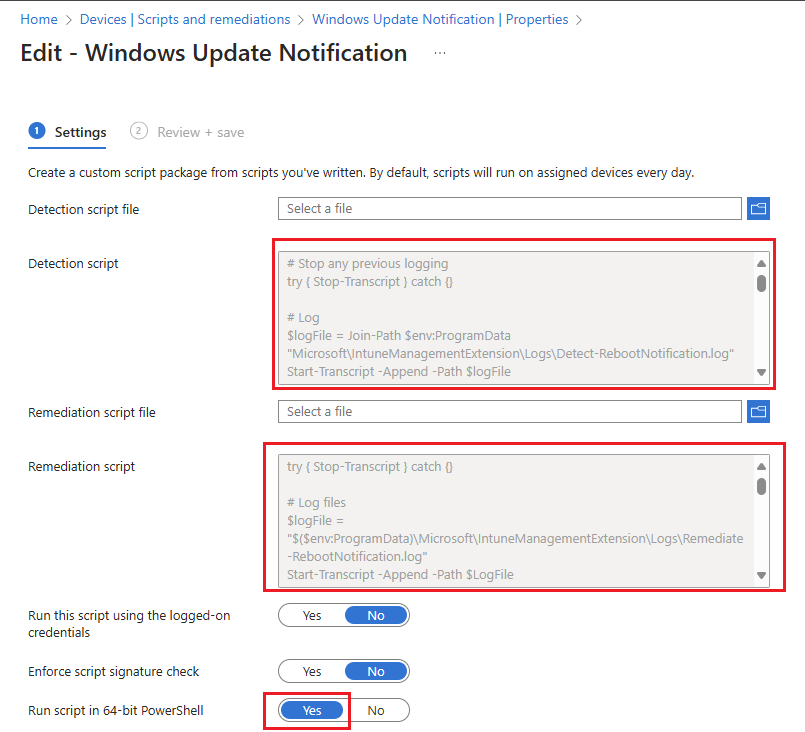
Along with having the following Settings Catalog profile in place:
Active Hours End = 16
Active Hours Start = 7
Auto Restart Notification Schedule = 240 minutes
Auto Restart Required Notification Dismissal = User Dismissal
Engaged Restart Snooze Schedule = 2
Schedule Imminent Restart Warning = 60 Minutes
Schedule Restart Warning = 24 hours
Scheduled Install Day = Tuesday
Scheduled Install Third Week = update is scheduled every third week of the month
Scheduled Install Time = 1
Update Notification Level = Use the default Windows Update notifications

Where update ring looks like this:

Once all the settings are applied to your machine, even after an autopilot re-enrollment, it will apply the changes:

And all the configured update policies as stated from the above

The Remediation (Detect and Remediate) would have run and show the results here.
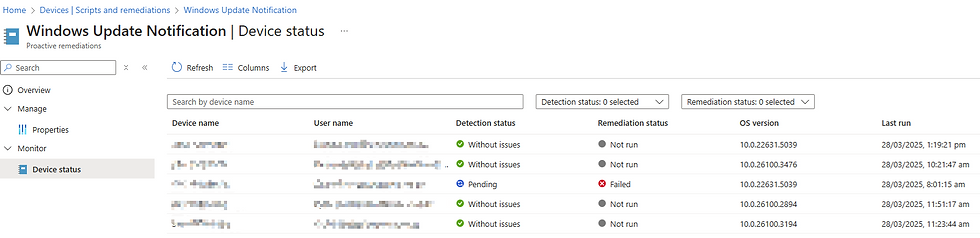
Registry Key also has been applied on the device


Comments