(211) Microsoft Defender and Intune - Setting Microsoft Defender to Passive Mode on Windows devices

In order to achieve Microsoft Defender to be set to Passive mode on Windows devices. You must have a main EDR (Endpoint Detection and Response) installed on your endpoints like Crowdstrike, Sophos, Cynet, Sentinel One and others.
Enable EDR in block mode
When Enable EDR in block is turned on, this helps protect devices that are running a non-Microsoft Antivirus solution. This provides added protection from malicious artifacts when Microsoft Defender is not the primary antivirus product and is running in passive mode.
1. By navigating to Microsoft Defender Portal, under System select Settings then select Endpoints.

2. Under General, select Advanced Features then select On for Enable EDR in block mode. Then click Save preferences.

Deploying Defender for Endpoint Onboarding
Once Enable EDR in block mode is enabled in Microsoft Defender, using Endpoint Security policy for endpoint detection and response (EDR) to manage the EDR settings and onboard devices to Microsoft Defender for Endpoint.
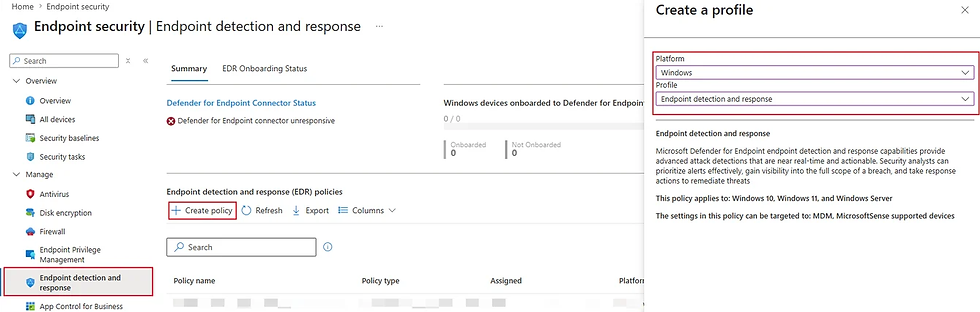
1. By navigating to Microsoft Intune Portal, select Endpoint Security then select Endpoint detection and response (EDR) policies then select Create policy and then under Platform: Windows then under Profile select Endpoint detection and response then select Create.
2. Under Basics, enter a name like: Defender for Endpoint Onboarding and select Next.

3. Under Configuration settings, select the following:
Microsoft Defender for Endpoint client configuration package type: Onboard
Onboard (Device): token will be automatically generated given by Microsoft Defender
Sample Sharing: Not configured
[Deprecated] Telemetry Reporting Frequency: Not configured

Select Next.
4. Under Scope Tags, leave as default and select Next.
5. Under Assignments, deploy to the required groups then select Next.

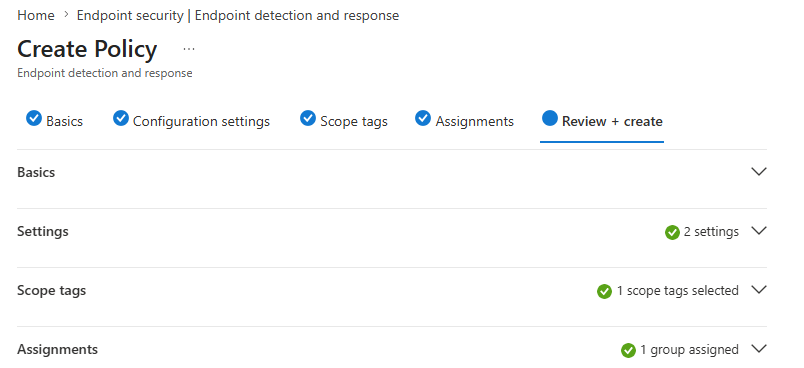
6. Under Review + create, review your deployment settings and select Create.
Deploying Defender Antivirus policy
Once the Defender for Endpoint onboard policy has been deployed, using Defender Antivirus which will be deployed to your tenant. This enables Microsoft Defender Antivirus to coexist with non-Microsoft antimalware solutions while still providing valuable endpoint detection and response capabilities.
1. By navigating to Microsoft Intune Portal, select Endpoint Security then select Antivirus then select Create policy and then under Platform: Windows then under Profile select Microsoft Defender Antivirus then select Create.
2. Under Basics, enter a name like: Microsoft Defender Antivirus and select Next.

2. Under Configuration settings, select the following against the table and select Next.
Setting | Configuration |
Allow Archive Scanning | Not allowed |
Allow Behavior Monitoring | Allowed |
Allow Email Scanning | Allowed |
Allow Full Scan Removable Drive Scanning | Allowed |
Allow scanning of all downloaded files and attachments | Allowed |
Allow Realtime Monitoring | Allowed |
Allow Script Scanning | Allowed |
Avg CPU Load Factor | 30 |
Check For Signatures Before Running Scan | Enabled |
Enable Network Protection | Enabled (block mode) |
PUA Protection | PUA Protection on |
Real Time Scan Direction | Monitor all files (bi-directional) |
Scan Parameter | Full scan |
Schedule Quick Scan Time | 720 |
Schedule Scan Day | Wednesday |
Schedule Scan Time | 720 |
Remediation action for Severe threats | Remove |
Remediation action for High severity threats | Remove |
Remediation action for Moderate severity threats | Quarantine |
Remediation action for Low severity threats | Quarantine |
Engine Updates Channel | Not configured (Default) |
Security Intelligence Updates Channel | Not configured (Default) |
3. Under Scope Tags, leave as default and select Next.
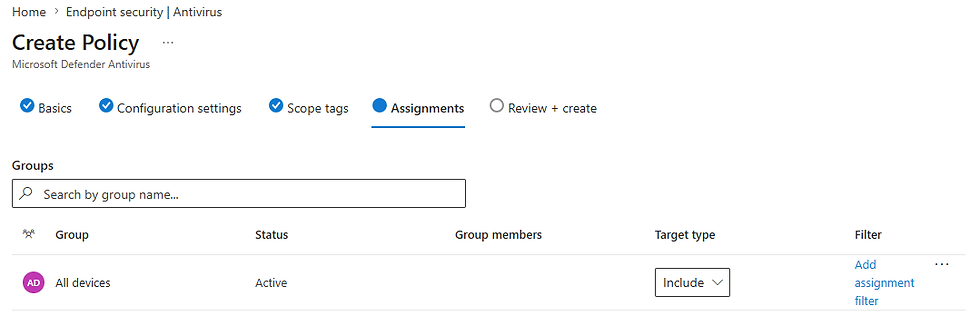
4. Under Assignments, deploy to the required groups then select Next.
5. Under Review + create, review your deployment settings and select Create.

Validation and Testing
Once the devices have received the Defender for endpoint onboarding and Defender Antivirus policy has been deployed.
Check the registered Antivirus products installed on the device by running: Get-CimInstance -Namespace root/SecurityCenter2 -ClassName AntivirusProduct | Select-Object displayname, productState, timestamp
For Crowdstrike:

For Sophos:

Check Installed Antivirus Package details by running in PowerShell: Get-Package "Sophos Endpoint Agent"

Check Sophos or Crowdstrike Service is running on the device by running in PowerShell:
For Crowdstrike: Get-Service CSAgent, CSFalconService

For Sophos: Get-Service "Sophos Endpoint Defense Service"

It is time to validate to see that Microsoft Defender is in running in Passive Mode, by running in PowerShell in standard mode, type in: Get-MPComputerStatus | Select AMRunningMode


Comments