(212) Microsoft Intune - Hide Run Apps Including OneDrive on Logon (User Context)

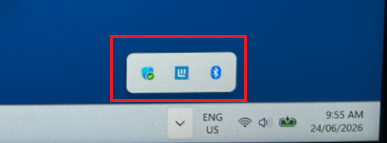
Haven't had time to post of late, due to work commitments, recently had a customer reached out wanting to prevent an "Exam User" profile from launching apps on logon. The setup is using the student's existing device, but switching user then logging in with "Exam User" where it puts it down in lock down mode which is deployed in user context. The customer wanted some apps like: Vivi, Teams, OneNote and OneDrive from appearing under the 'Show hidden icons' on the bottom right hand side.
I have prepped a remediation script which runs in user context which works fine.
Detect:
# Added "OneDrive" to registry targets
$registryTargets = @("Teams", "electron.app.Vivi", "OneDrive")

# Added "OneDrive" to shortcut targets to catch any stray .lnk files
$shortcutTargets = @("Send to OneNote Tool", "OneNote2010", "Microsoft Office OneNote Quick Launch", "Send to OneNote", "OneDrive")

$foundIssues = $false

# Check HKCU Registry only
$hkcuRunPath = "HKCU:\Software\Microsoft\Windows\CurrentVersion\Run"
foreach ($app in $registryTargets) {
    if (Get-ItemProperty -Path $hkcuRunPath -Name $app -ErrorAction SilentlyContinue) {
        $foundIssues = $true
    }
}

# Check User Startup Folder only
$userStartupFolder = "$env:APPDATA\Microsoft\Windows\Start Menu\Programs\Startup"
foreach ($target in $shortcutTargets) {
    if (Get-ChildItem -Path $userStartupFolder -Filter "*$target*.lnk" -ErrorAction SilentlyContinue) {
        $foundIssues = $true
    }
}

if ($foundIssues) {
    Write-Host "Target startup items found in current user context. Remediation required."
    Exit 1
} else {
    Write-Host "Healthy. No target startup items found for current user."
    Exit 0
}
Remediate:
# 1. Terminate running processes for all target apps
# Added "OneDrive" to the process list
$processNames = @("ms-teams", "Teams", "Vivi", "ONENOTEM", "ONENOTE", "OneDrive")

foreach ($process in $processNames) {
    if (Get-Process -Name $process -ErrorAction SilentlyContinue) {
        Stop-Process -Name $process -Force -Verbose
        Write-Host "Terminated running process: $process" -ForegroundColor Yellow
    }
}

# Target registry and shortcut names for the current user
# Added "OneDrive" to both registry and shortcut targets
$registryTargets = @("Teams", "electron.app.Vivi", "OneDrive")
$shortcutTargets = @("Send to OneNote Tool", "OneNote2010", "Microsoft Office OneNote Quick Launch", "Send to OneNote", "OneDrive")

# 2. Clean Registry Startup Items (Current User Only)
$hkcuRunPath = "HKCU:\Software\Microsoft\Windows\CurrentVersion\Run"
foreach ($app in $registryTargets) {
    if (Get-ItemProperty -Path $hkcuRunPath -Name $app -ErrorAction SilentlyContinue) {
        Remove-ItemProperty -Path $hkcuRunPath -Name $app -Verbose
        Write-Host "Successfully removed $app from HKCU Run registry key." -ForegroundColor Green
    }
}

# 3. Clean Legacy Shortcuts from the User's Startup Folder
$userStartupFolder = "$env:APPDATA\Microsoft\Windows\Start Menu\Programs\Startup"

if (Test-Path $userStartupFolder) {
    foreach ($target in $shortcutTargets) {
        # Find any .lnk files matching the target names in user profile
        $shortcuts = Get-ChildItem -Path $userStartupFolder -Filter "*$target*.lnk" -ErrorAction SilentlyContinue
        foreach ($file in $shortcuts) {
            Remove-Item -Path $file.FullName -Force -Verbose
            Write-Host "Deleted user startup shortcut: $($file.Name)" -ForegroundColor Green
        }
    }
}
Settings of the script:
Detection script = Yes
Remediation script = Yes
Run this script using the logged-on credentials = Yes
Enforce script signature check = No
Run script in 64-bit PowerShell = Yes
Once the device has received the remediation script, on next startup those apps: Vivi, OneNote, Teams and OneDrive not appear.


Comments