(108) Microsoft Intune - Google Chrome Automatic Sign-In Policy
- Mr B SOE way
- Mar 8, 2024
- 1 min read

In the past to autologin to any SSO intergrate apps to Microsoft for Google Chrome, you would need to use an "Windows Account" for Google Extensions to work.
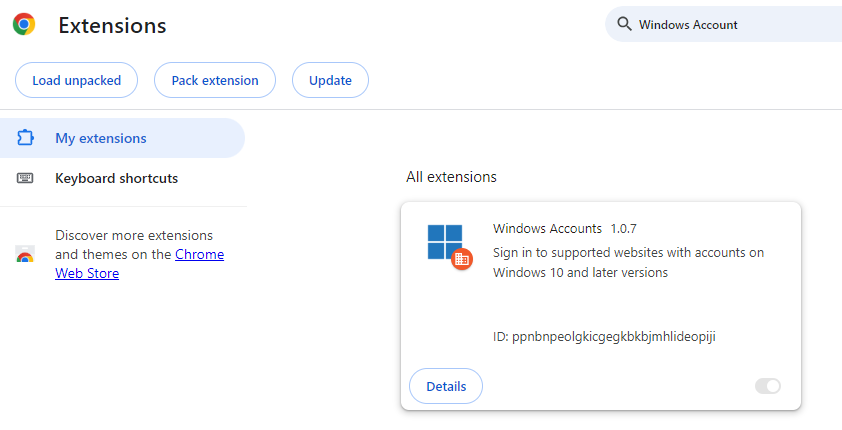
Solution:
Navigate to https://intune.microsoft.com then select Windows then select Configuration policies then select Create then select New Policy then Administrative Templates then search for "Allow automatic sign-in to Microsoft® cloud identity providers".
Then select Enabled then under "Allow automatic sign-in to Microsoft® cloud identity providers" to Enable Microsoft® cloud authentication"

Select OK then assign the profile.
Once the device has received the policy, start up Google Chrome and it should autologin to https://portal.azure.com without the need to re-enter your login details. If you do get prompted for MFA, and you have previously initated it previously it will most likely re-use the same token previously.

Comments